This is one of the important information you might be interested in, if you frequently debug a Workflow Process at run-time by increasing the Monitoring Level under "Administration - Business Process -> Workflow Deployment" view.
Whenever you increased the Monitoring Level to "4-Debug", system starts capturing the WF steps details along with the each Process Property at each step, to give a better picture of what has exactly happened at each step and it is very helpful for debug purpose. You can see all Run-time degugging details in "Administration - Business Process -> Workflow Instance Monitor" view.
"Process Instances" gives you all the Workflow Instances run once the Monitoring Level has been increased. It all tells the currently running WF Step.
"Step Instances" captures the details of each step along with its start and end time.
"Process Properties" captures the value of each process property in each WF step.
Though this information is useful but it is a good practice to decreased the log level back to "0-None", once you are done with debugging and also the most important thing you should do is "Purge" all the Workflow Process Instances. Navigate to "Administration Business Process -> Workflow Instance Monitor -> Process Instances", query for the workflow process and click "Purge".
Now, why I am saying this last step of purging these records as "very important"?
Let me tell me what actually happened when I was debugging one of the workflow issue. I increased the monitoring level to 4 for debugging purpose and that workflow was having around 30 workflow steps and around 50 process properties. Additionally, this workflow runs on the child activities (average number around 50) of the Service Request. So you try calculate the number of process property instances record (in S_WFA_STPRP_LOG), system will create in a single workflow run = 30 x 50 x 50 = 75000. Big number isn't it?? So if I debug this workflow few number of times, the number of records will be really huge. But remember, as far as you are purging the records after debugging finishes, then no issues, but if you don't then these records will pile up and some day your database size will run short out of physical space.
So what actually happened was, I made few changes in the workflow and deployed again. Went to "Administration Business Process -> Workflow Deployment" and queried the workflow process and hit "Activate". In the below "child items" applet, system creates a new version of the workflow process with Deployment Status = Active and the older record becomes gets its status = Inactive. So I thought this record is Inactive, let me delete this old instance. I did that few number of times and never realizes that it will just delete this record from "S_WFA_DPLOY_DEF" table and its corresponding child records in "S_WFA_STPRP_LOG" table will keep sitting there. And there is no way you can "Purge" these records from the UI using "Purge" button because the parent record has been deleted earlier.
So it end up having millions of records in this table without parent record and later we realized the database is running short of physical memory and when I checked for the tables in the database which all having huge number of records, we found "S_WFA_STPRP_LOG" table was leading the race. I did the clean-up of the child records via running some SQLs in the database by finding the orphan records in "S_WFA_STPRP_LOG" and learned the lesson using "Purge" button after completing the debugging.
Hope this will also help you in future.
Tuesday, July 20, 2010

Thursday, July 15, 2010
How to create Inbound Web Service in Siebel?
In the last post, we talked about creating an Outbound Web Service in Siebel where we receives the WSDL file from other system and consume it into Siebel Tools to generate necessary artifacts.
Today I found a very nice tutorial for creating an Inbound Web Service in Siebel. In this post you will find how to publish the WSDL from Siebel and let the outside world do data manipulation inside Siebel.
You can easily find it at the below links:
http://st-curriculum.oracle.com/obe/fmw/soa_apps_integ/10g/10_132_siebel/siebel.htm
http://www.oracle.com/webfolder/technetwork/tutorials/obe/fmw/soa_apps_integ/10g/10_132_siebel/siebel.htm
At the end of above tutorial, you will be generating the WSDL file from Siebel thin client which need to provide to other system to test the Inbound Web Service you created. Please refer the following post for testing the WSDL:
Test WSDL
Today I found a very nice tutorial for creating an Inbound Web Service in Siebel. In this post you will find how to publish the WSDL from Siebel and let the outside world do data manipulation inside Siebel.
You can easily find it at the below links:
http://st-curriculum.oracle.com/obe/fmw/soa_apps_integ/10g/10_132_siebel/siebel.htm
http://www.oracle.com/webfolder/technetwork/tutorials/obe/fmw/soa_apps_integ/10g/10_132_siebel/siebel.htm
At the end of above tutorial, you will be generating the WSDL file from Siebel thin client which need to provide to other system to test the Inbound Web Service you created. Please refer the following post for testing the WSDL:
Test WSDL
Tuesday, June 8, 2010
How to create Outbound Web Service in Siebel?
Today, lets talk about how we can invoke an Outbound Web Service from Siebel. In the last post we learned how to test the WSDL using SOAPUI and I will use the same WSDL today (CurrencyConverter.wsdl) as the sample wsdl in this post.
1. Import the WSDL into Siebel Tools.
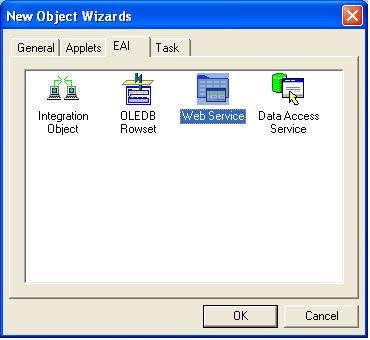
Create New Object. File Menu -> New Object -> EAI -> Web Service
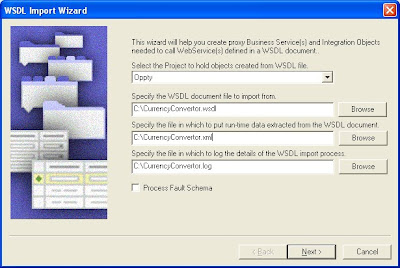
Select the WSDL file path
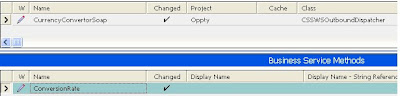
Business Service will get created with name "CurrencyConverter" and its method "CoversionRate"
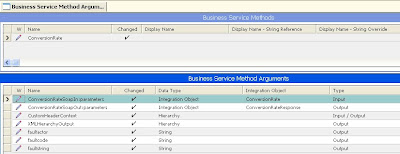
ConversionRate method has got its Input/Output Arguments. The point to be notice here is the Integration Objects i.e. "ConversionRate" and "ConversionRateResponse". These are the external integration objects which defines the Request and Response XML of the Web Service.
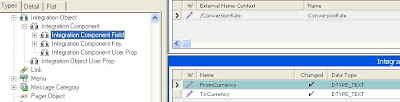
If you query for Integration Object (Input): "ConversionRate", it will look like this:
and these are the two Input arguments of the Request XML of the Web Service.
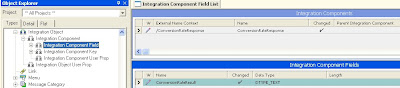
Similarly, the Output IO will have a single output argument:
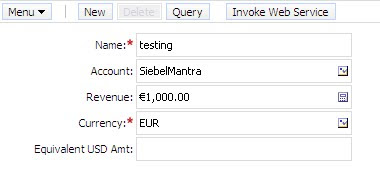
2. Create the UI. (Applet based on Opportunity BC)
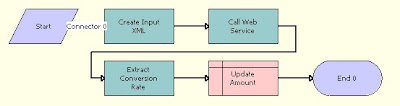
3. Create Workflow to get the response from Web Service.
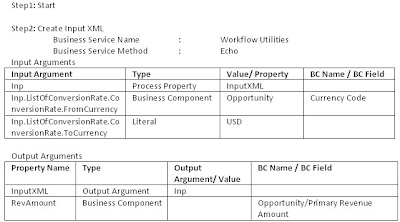
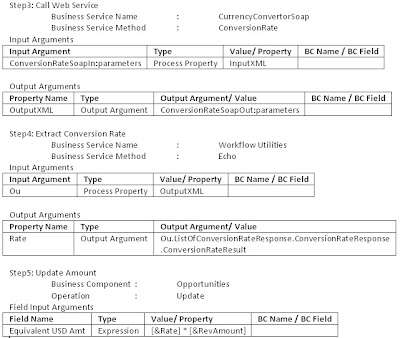
4. Call the Workflow from button click. To do this just create a BC User Prop on Opportunity BC
Named Method 1 : "Invoke", "INVOKESVC", "Opportunity", "Workflow Process Manager", "RunProcess", "'ProcessName'", "CurrencyConverter"
Where "Invoke" is Method Invoked from button on the opportunity applet.
5. Compile the objects and test.
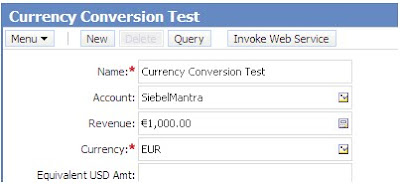
After button click:
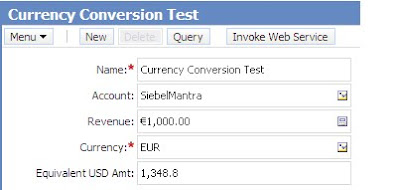
I am assuming that you are connected to internet while doing this test and this is how you can play with the live web service.
1. Import the WSDL into Siebel Tools.
Create New Object. File Menu -> New Object -> EAI -> Web Service

Select the WSDL file path

Business Service will get created with name "CurrencyConverter" and its method "CoversionRate"

ConversionRate method has got its Input/Output Arguments. The point to be notice here is the Integration Objects i.e. "ConversionRate" and "ConversionRateResponse". These are the external integration objects which defines the Request and Response XML of the Web Service.

If you query for Integration Object (Input): "ConversionRate", it will look like this:
and these are the two Input arguments of the Request XML of the Web Service.

Similarly, the Output IO will have a single output argument:

2. Create the UI. (Applet based on Opportunity BC)

3. Create Workflow to get the response from Web Service.


4. Call the Workflow from button click. To do this just create a BC User Prop on Opportunity BC
Named Method 1 : "Invoke", "INVOKESVC", "Opportunity", "Workflow Process Manager", "RunProcess", "'ProcessName'", "CurrencyConverter"
Where "Invoke" is Method Invoked from button on the opportunity applet.
5. Compile the objects and test.

After button click:

I am assuming that you are connected to internet while doing this test and this is how you can play with the live web service.
Subscribe to:
Posts (Atom)